What is Server-Side Sync in Dynamics 365?
Server-Side Synchronization (SSS) is basically the invisible courier between Dynamics 365 and Microsoft Exchange. It handles the dirty work – emails, appointments, tasks, contacts – and keeps both systems aligned without any plugins, client-side tools, or constant user interaction.
It replaced the Email Router, an on-prem service that once sat awkwardly between CRM and Exchange. The Email Router needed manual installs, credentials stored on servers, and constant babysitting. SSS, by contrast, runs natively inside the Dynamics 365 backend and uses asynchronous server processes to manage mailbox connections and data flow.
Understanding how Server-Side Sync works in Dynamics 365
Server-Side Synchronization is the silent broker between Dynamics 365 and Exchange — not a simple mirror, but a selective, rule-driven filter that decides what’s actually worth tracking. Its job isn’t to copy entire mailboxes or calendars into CRM. Instead, it ensures that meaningful, business-relevant communication appears in the Dynamics 365 timeline, where it can be understood in the right context.
Think of SSS as a translator between two very different worlds:
- Exchange: messages, folders, human interactions, and unstructured communication
- Dynamics 365: entities, relationships, business context, structured data models
These systems don’t naturally “speak” the same language. Synchronization is the negotiation layer that lets them overlap — just enough to keep business processes coherent without overwhelming CRM with noise.
And that overlap is intentionally limited. SSS moves data only when it detects a clear tracking signal, for example:
- a user manually tracks an email
- a tracked folder rule is triggered
- a thread correlation is detected
- a contact or record match is found
This selective approach protects Dynamics 365 from becoming a cluttered dump of every email or calendar entry, and it prevents Exchange from getting polluted with CRM system data that no one needs.
In practice, this means Server-Side Sync is never a “set and forget” mechanism. It’s a constant balancing act — an interplay between:
- user behavior
- synchronization filters
- tracking rules
- system logic and correlation patterns
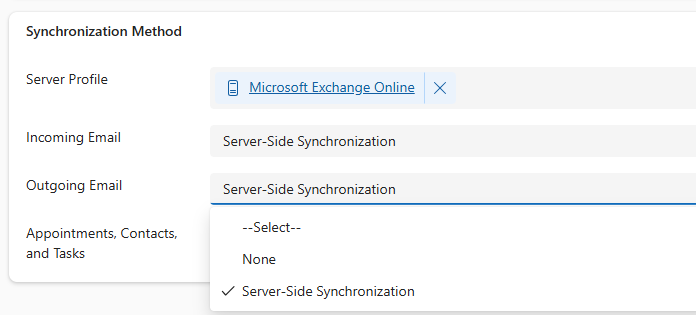
The mailbox configuration screen where Dynamics 365 is set to use Server-Side Synchronization for Exchange Online.
When trust starts to crack: Dynamics 365 sync issues
Users want one simple thing:
“If I create or update something, I want it to appear correctly in both Outlook and Dynamics.”
But Server-Side Sync doesn’t run on intuition – it runs on configuration.
When configuration doesn’t reflect real user behavior, trust collapses.
Examples include:
- a contact falling out of a sync filter
- Outlook edits overwriting Dynamics 365 data
- CRM updates not appearing in Exchange because of filters
- appointments disappearing from the CRM timeline
When good intentions create sync problems
SSS connects two systems that speak very different languages: the transactional world of email and the structured world of CRM data. It synchronizes specific types of information – emails, appointments, contacts, and tasks – but the synchronization logic for each type differs.
For emails, synchronization is event-driven, not continuous. Nothing appears in Dynamics 365 until the system has a reason to bring it in. That reason can be:
- a user manually tracking a message,
- a folder-level rule that marks certain messages for synchronization, or
- a correlation detected between an existing CRM record and an email thread.
Both believe they’re helping. Both create unpredictable behavior.
And unpredictable behavior destroys user trust.
The false sense of control: why sync filters cause problems
Sync filters are often presented as a way to “control what synchronizes.”
In reality:
- filters only restrict Dynamics → Exchange
- they do NOT restrict Exchange → Dynamics
This is where the biggest Dynamics 365 sync issues come from.
Effects:
If a record falls outside a filter → Dynamics stops sending updates.
But Exchange can still send updates → overwrites CRM data.
Users think Dynamics is inconsistent → trust drops to zero.
So when a meeting updates in Outlook but not in Dynamics, users lose confidence.
When a CRM edit quietly disappears because Exchange overwrote it, confidence turns to skepticism.
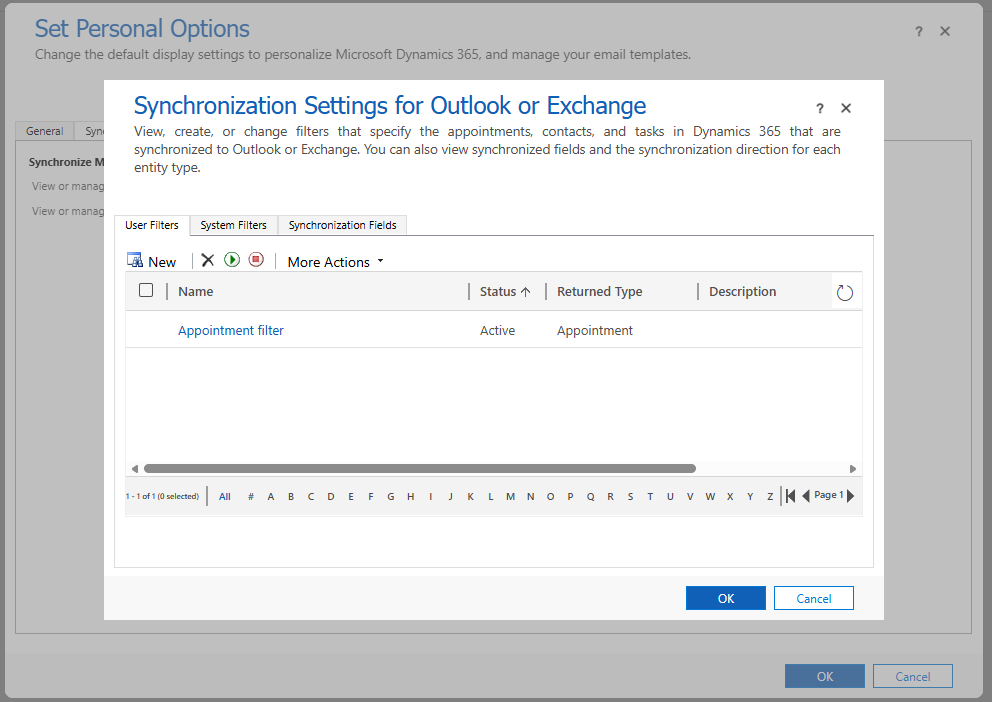
The personal sync filter settings – often misunderstood as full control over what synchronizes between Outlook and Dynamics 365.
The emotional cost of Server-Side Sync configuration
The real trust issue isn’t that SSS fails – it’s that users can’t predict why.
Every filter, exception rule, and “optimization” changes behavior silently.
It feels like someone rearranging your house at night: everything still exists, but not where you left it.
So when sales managers say, “My meetings keep disappearing,” they’re not complaining about a bug, but expressing a lack of trust.
How Server-Side Sync actually works (emails, tasks, appointments)
SSS connects two systems that speak very different languages: the transactional world of email and the structured world of CRM data. It synchronizes specific types of information – emails, appointments, contacts, and tasks – but the synchronization logic for each type differs.
For emails, synchronization is event-driven, not continuous. Nothing appears in Dynamics 365 until the system has a reason to bring it in. That reason can be:
- a user manually tracking a message,
- a folder-level rule that marks certain messages for synchronization, or
- a correlation detected between an existing CRM record and an email thread.
Direction of synchronization
Synchronization in Server-Side Sync is bidirectional but not symmetrical. Data can flow both ways between Dynamics 365 and Exchange, but not every change is treated equally, and filters determine what is eligible to move.
Emails
Exchange → Dynamics 365: Messages appear in Dynamics only when they meet a tracking condition:
- being manually tracked,
- moved into a tracked folder,
- matched via a tracking token or smart matching.
Appointments and Tasks
Appointments and tasks are synchronized in both directions, but there are different rules on what is being tracked. In Outlook, you need to manually select all appointments that you wish to track in Dynamics 365, and in Dynamics 365 you use personal filters to limit what’s being synced to Exchange. When a record falls outside a user’s synchronization filter, Dynamics stops sending updates for it – however, changes made in Outlook can still flow back into Dynamics if correlation remains.
This means that once a meeting or task is out of scope, edits in Dynamics will no longer appear in Outlook, but edits made in Outlook may still overwrite data in Dynamics. It’s a one-way filter, not a mutual boundary. This is one of the reasons people tend to develop trust issues when it comes to Server-Side Sync.
How matching works (tracking tokens, smart matching, conversation data)
Once an email is tracked, Server-Side Synchronization maintains its relationship with subsequent messages through several complementary mechanisms that together reconstruct the conversation across systems.
- Tracking tokens – Unique identifiers inserted into the subject line (for example, [CRM:000123]). Any reply that preserves this token is automatically linked to the same record in Dynamics 365. Tokens are deterministic – they guarantee that even unrelated subjects can be matched if the token is present.
Smart matching – A correlation process that analyzes sender and recipient addresses, subject lines, and message direction to detect relationships between emails even when no token exists. - Smart matching can connect follow-ups, replies, or forwards to the original tracked message if the metadata pattern remains consistent.
- Exchange conversation data – SSS also leverages the conversation ID and conversation index maintained by Exchange. These identifiers persist across a mail thread and allow Dynamics to recognize when a new message belongs to an existing Exchange conversation, even if the subject line has been modified or the token removed.
Together, these mechanisms form a multi-layered matching logic. Tokens provide absolute certainty, conversation data provides structural continuity, and smart matching fills the gaps in between. The result is a cohesive timeline in Dynamics 365 where all related correspondence appears as part of a single conversation, preserving context and history without requiring user intervention.
The role of Sync filters – the root of many Dynamics 365 Sync issues
Filters in Server-Side Synchronization define which records are eligible for synchronization. They aren’t about access control or visibility; they are about scope and precedence.
Each user has personal filters for contacts, tasks, and appointments that determine which records are synchronized between Dynamics 365 and Exchange. These filters work in a one-way restrictive manner: they limit what Dynamics sends out to Exchange, but do not block Exchange from sending updates in. This has a subtle but critical consequence.
If a record falls outside of the user’s filters, Dynamics stops updating that record in Exchange – for example, changes made in Dynamics to an out-of-scope meeting will not appear in Outlook. However, if the same item still exists in Exchange and a user modifies it there, the change can still flow back into Dynamics, overwriting the CRM version. This sometimes creates the impression that Dynamics “lost” a change – when in fact, it was correctly overwritten by a newer inbound update from Exchange.
For example: If an appointment in Dynamics no longer meets the synchronization filter, edits in Dynamics won’t reach Outlook. But if that meeting still exists in Outlook and the user updates something, SSS may import that change back into Dynamics.
Rebuilding trust in Dynamics 365 Server-Side Sync
Fixing this doesn’t mean making SSS perfect. It means making it transparent.
- Explain what gets synchronized and why.
- Document filter logic in plain language, not in flowcharts.
- Review mailbox alerts regularly – not because something’s broken, but to prove it isn’t.
- And above all, involve users when designing synchronization rules.
- … or just drop the unnecessary optimization 🙂
The takeaway: controlled synchronization, not copy-paste
Server-Side Synchronization remains the operational backbone connecting Dynamics 365 and Exchange – a proven mechanism that quietly handles the daily flow of communication and activity data across both systems.
When configured with clear tracking rules, well-defined filters, and regular monitoring, SSS delivers stable, predictable synchronization. It keeps emails, meetings, and tasks aligned between systems without flooding Dynamics with unnecessary noise.
The key to understanding SSS is that it’s selective by design. It doesn’t mirror Outlook; it curates what reaches Dynamics. Every tracked message has a reason to be there, every record is linked by identifiable logic, and every change follows a defined direction.
So yes, SSS has trust issues – but not because it’s unstable. Because it’s human. It reflects our assumptions, our shortcuts, and our endless need to “make it smarter.” And the only real fix is keeping it simple