Why offline mode still matters in a cloud-first world
Most business software today is built for the cloud. The apps we use every day, at work and in our personal lives, are usually cloud-based and available across devices, which makes it easy to stay connected and productive.
But life isn’t always that smooth. Internet connections fail, coverage drops, and sometimes there’s simply no access at all. When that happens, cloud apps stop working — unless they support offline mode. This is especially important for frontline roles like service technicians, salespeople, and anyone who spends most of their working time outside the office.
In the Microsoft ecosystem (Dynamics 365 and Power Platform), offline work is supported through something called offline profiles. This works out of the box for mobile scenarios. But what if your users need to work offline on their laptops, not just on phones or tablets? That’s exactly what this article focuses on.
Using Field Service app without internet
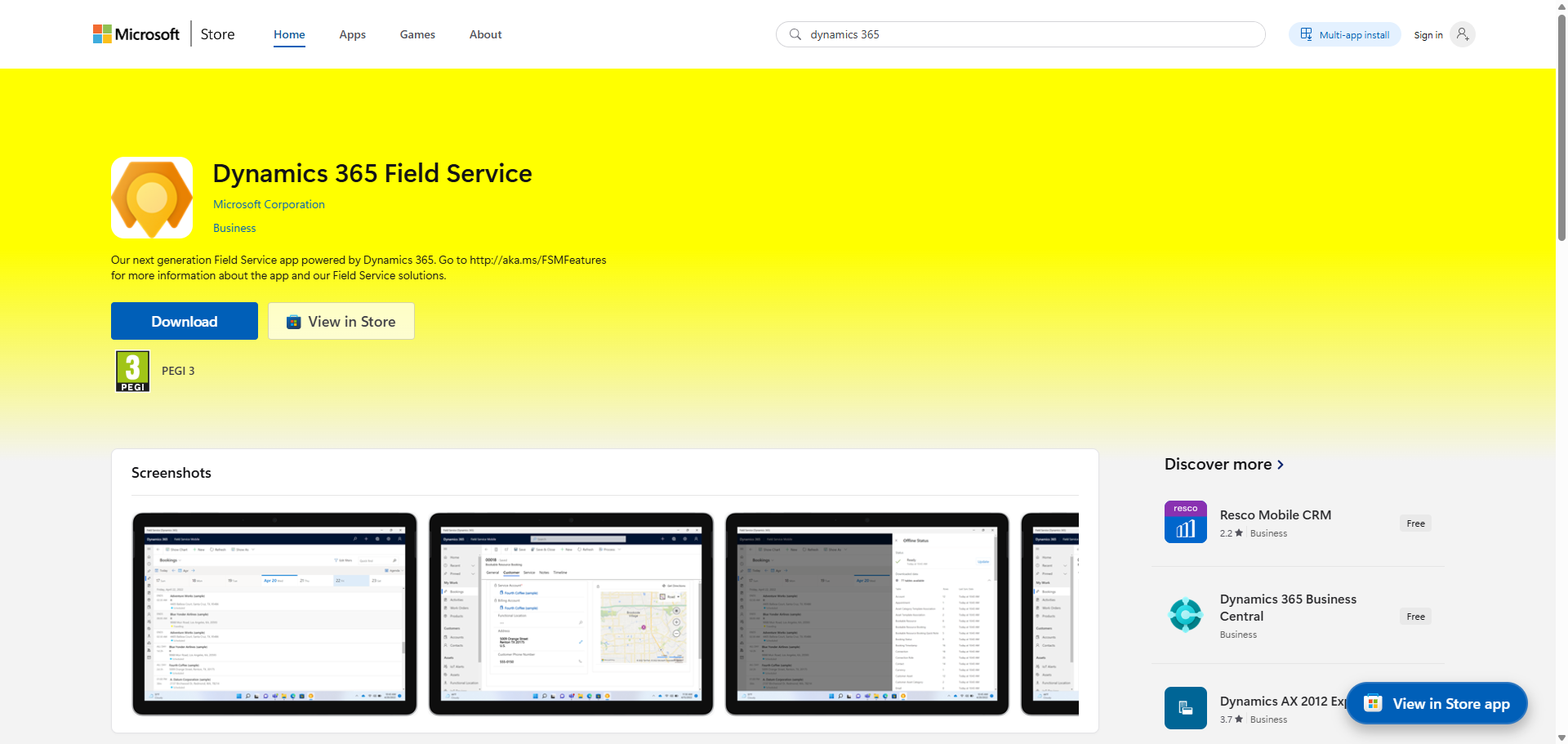
Let’s start with Field Service. For people working in the field, Microsoft offers a dedicated native app that runs not only on mobile devices, but also on Windows laptops.
Using Power Apps offline for Sales Hub and custom model-driven apps
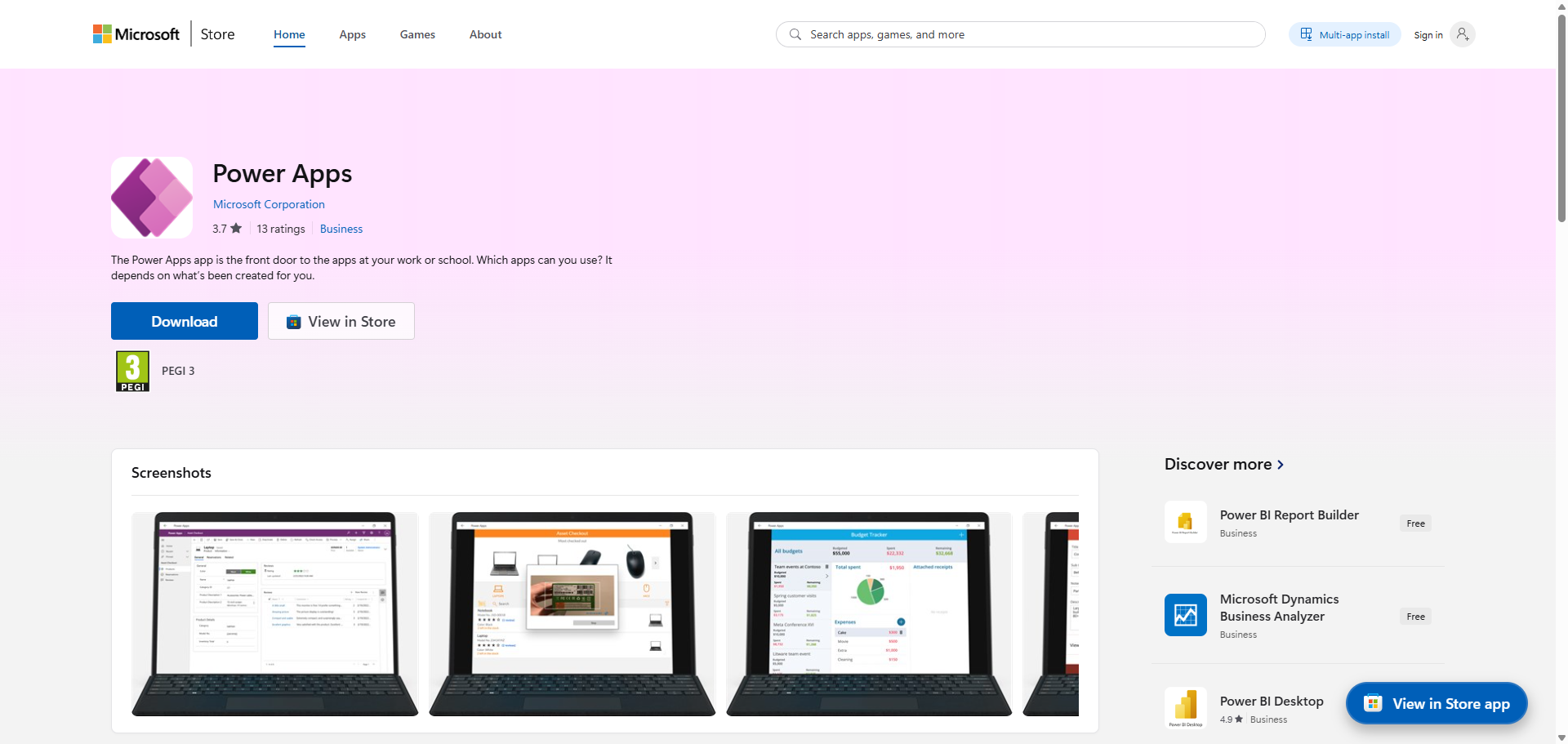
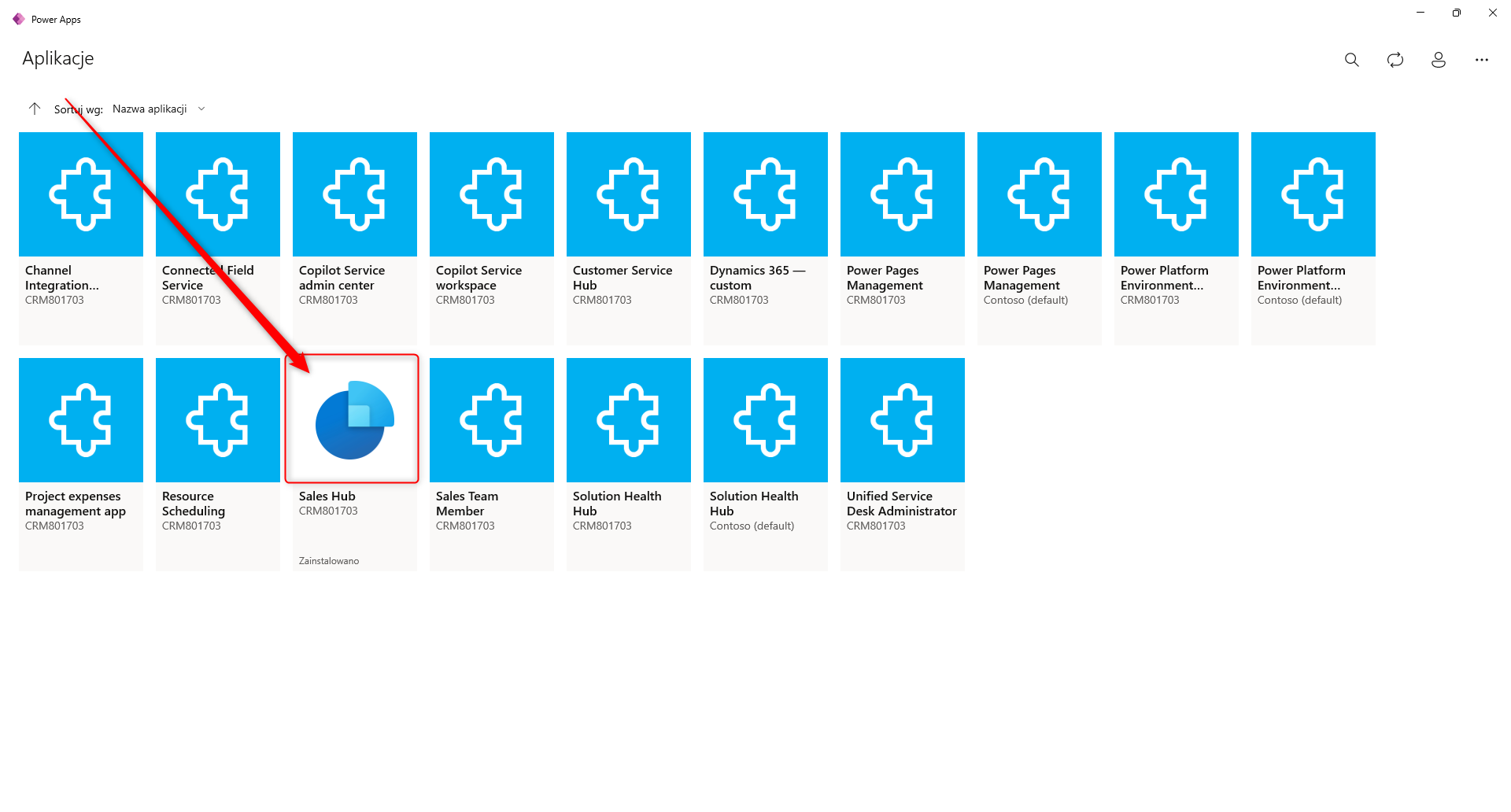
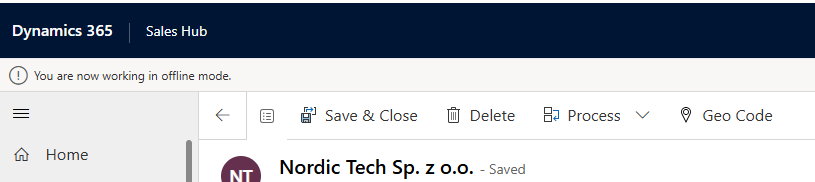
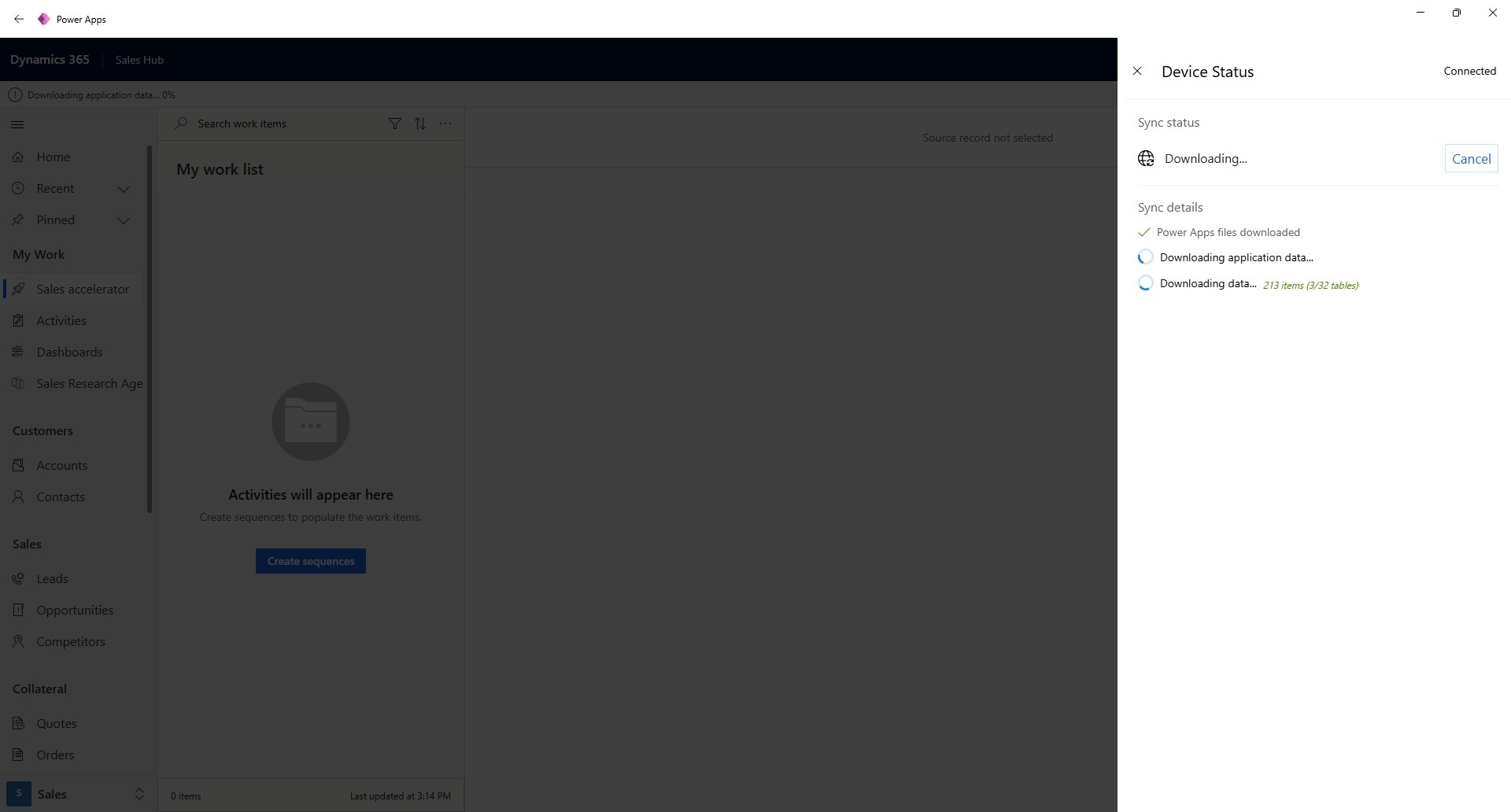
But what if you want to use other business apps, such as Sales Hub or a custom model-driven app built by your IT team? With Power Apps offline mode, you can configure this using the same offline profiles. How can your users run these apps? They simply need to download the Power Apps app, open it, log in with their credentials, and choose the business app they want to work with.
How to set up offline mode in Power Apps
And this brings us to the question: how do you set up an app to also work in offline mode?
You need to configure a few things:
- Offline profile or profiles
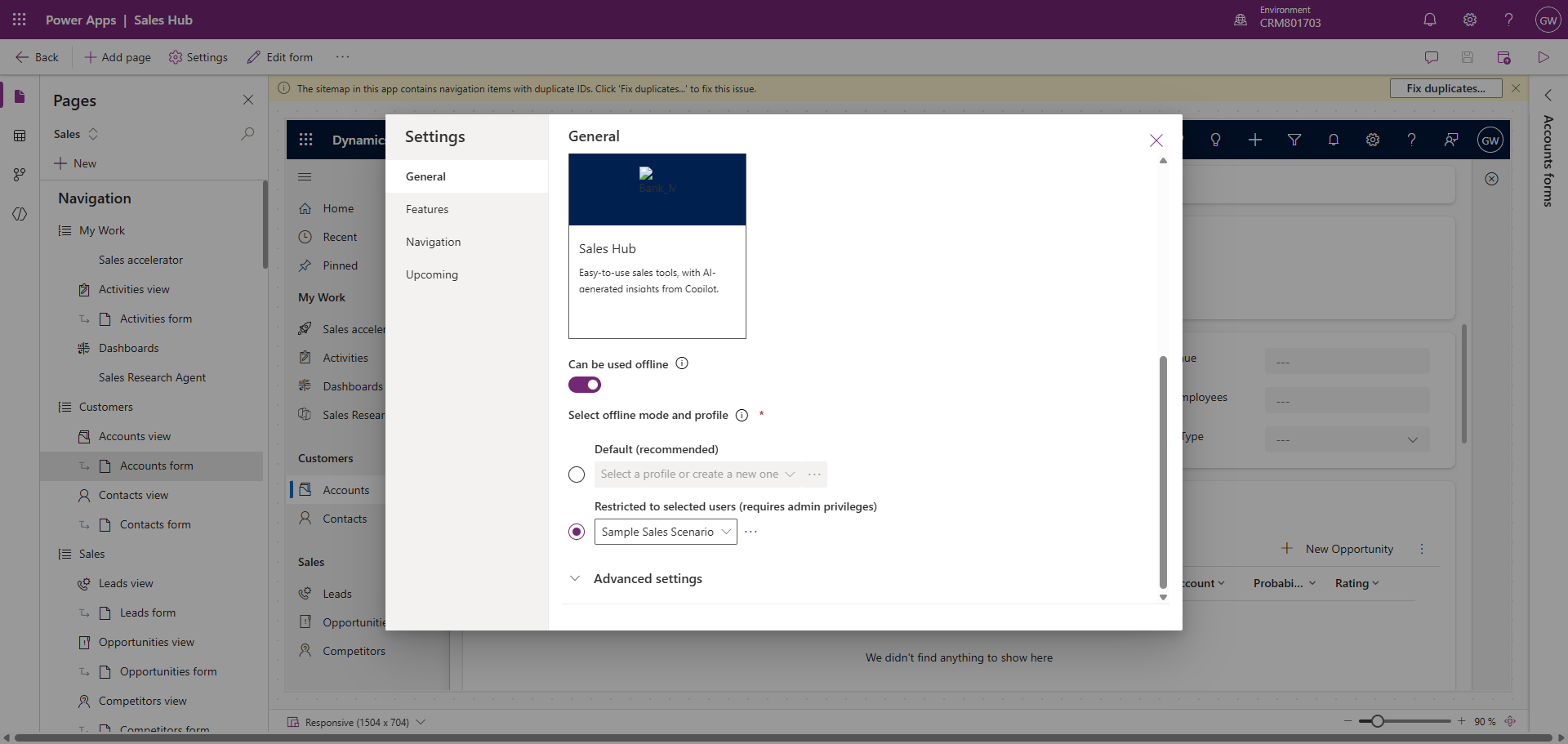
- Enable the toggle in the app settings to make the app available in offline mode
- Adjust app forms and decide which fields should be available offline
- Choose the offline profile for the app, or decide that it will vary based on the user’s assigned offline profile
- Assign users to offline profiles
What is an offline profile and how does it work?
An offline profile is a configuration where you define which tables are available in offline mode and which data from those tables should be accessible. For example, you can decide that the Accounts table will be available offline, but users will only see accounts where they are assigned as the owner.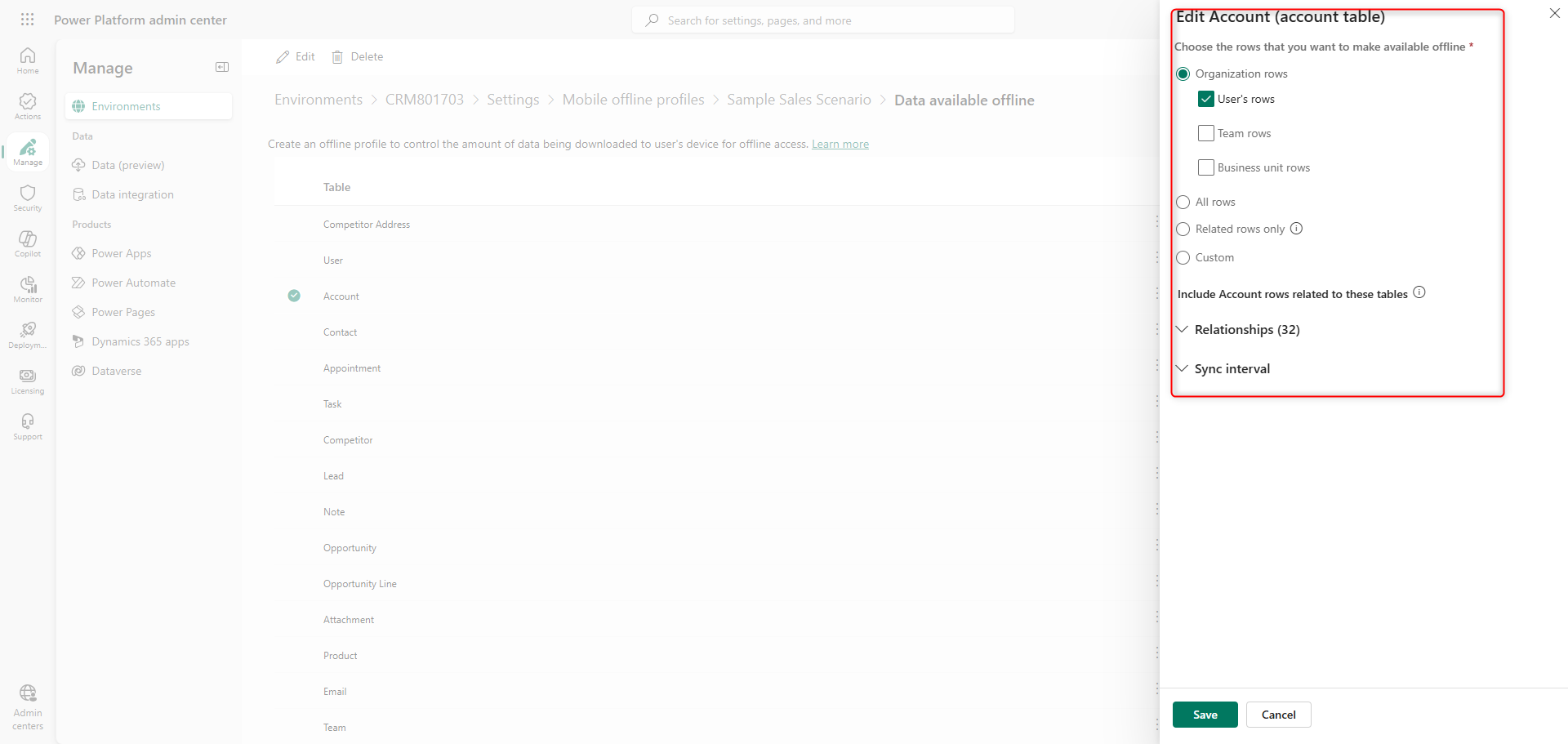
After that, you can assign the profile to users. This is required if you chose the Restricted to selected users option when setting up the app’s offline profile. It allows you to decide which users, among all those who have access to the app, will also have access to offline mode.
If you want all users to have access to offline mode for a given app, choose Default offline mode and assign an offline profile.
Security and data control
Publish the app and let your users know that from now on they can use it even without an internet connection.
What’s really useful here is that both mobile apps and the Power Apps app for Windows work based on the same configuration. Both use the same app settings and offline profiles. This becomes even more important when you are working with a custom app. All security and offline setup is available out of the box (OOTB) with Power Platform.
The data stored on devices is selected by you and, in addition, is secured according to the highest standards. By selecting offline mode restricted to selected users, you gain even more control over who can access your company data offline.
Limitations you need to be aware of
Although offline mode is supported in Power Apps, it does not offer the full app experience. There are limitations when it comes to actions available offline. When building a custom app, makers should keep these limitations in mind.
Any actions that require an API call, server call, or Power Automate flow will not work in offline mode. In most cases, the actions supported for tables are basic CRUD operations (Create, Read, Update, Delete). The list of supported actions for standard tables is shown below:
| Table | Permissions |
|---|---|
| Account | Create, Read, Update, Delete |
| Activity Pointer | Read, Delete |
| Appointment | Create, Read, Update, Delete, Convert Activity Case |
| Attachment | Read only |
| Case | Create, Read, Update, Delete |
| Competitor | Create, Read, Update, Delete |
| Competitor Address | Create, Read, Update, Delete |
| Connection | Read only |
| Connection Role | Read only |
| Contact | Create, Read, Update, Delete |
| Custom table | Create, Read, Update, Delete |
| Read only | |
| Lead | Create, Read, Update, Delete, Qualify/Disqualify |
| Opportunity | Create, Read, Update, Delete, Qualify/Disqualify |
| Opportunity Product | Create, Read, Update, Delete |
| Phone Call | Create, Read, Update, Delete |
| Position | Create, Read, Update, Delete |
| Product | Read |
| Read | Create, Read, Update, Delete |
| Team | Read only |
| User | Read only |
| Bookable Resource Booking | Create, Read, Update |
| Work Order | Create, Read, Update |
| Work Order Product | Create, Read, Update |
| Work Order Service | Create, Read, Update |
| Work Order Service Task | Create, Read, Update |
Table 1 Actions supported in the offline mode. Source: https://learn.microsoft.com/en-us/power-apps/mobile/offline-limitations