Since last year, a lot has changed in the CRM systems world. We have moved from systems of record to systems of knowledge and action. Of course, this change was accelerated by the next wave of AI – generative AI features.
But even before OpenAI made its revolution, all CRM vendors were already looking for ways to automate and improve processes. One of the main pain points (especially in the Sales module) has always been data entry and data updates.
A CRM system can shine only when data quality is good or very good. This is what enables accurate predictions and calculations, allowing business decision-makers to take the right actions.
The faster you know about your customer’s interest in a new product, the higher your chances of selling it.
The faster you know about a complaint or low survey results, the faster you can react and avoid churn.
That is why making data entry as easy as possible is one of the key priorities.
And I’m calling it…
If your sales team still types notes after meetings – you’re doing it wrong
Make data entry simple
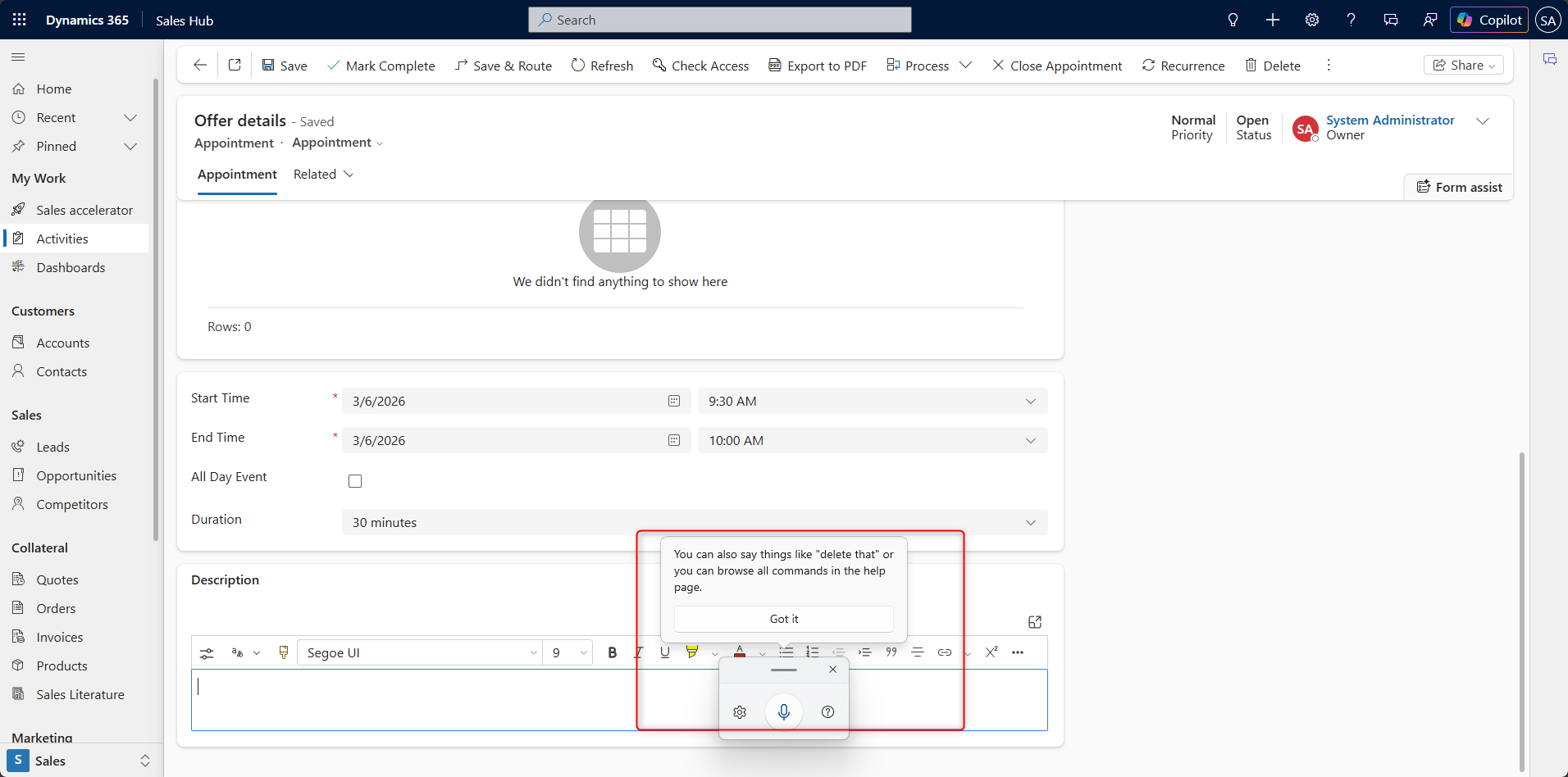
Voice-to-text in Dynamics 365 Sales
Dynamics 365 CRM offers multiple ways to make your team’s life easier.
First of all, it provides a mobile app for sales teams, available on both Android and iOS. In both cases, the app can use native voice-to-text functionality.
The user simply needs to:
- open the app
- open the meeting
- click on the notes field
- and use the microphone to dictate
The app does the rest.
The same applies when working on Windows laptops. Just click into a text field and use the Windows + H shortcut. You can dictate longer text instead of typing.
When it comes to language support and word recognition – it works very well. Just make sure your language is supported by Windows, Android, or iOS.
Business card scanner in Dynamics 365
In sales, business cards are still a big thing. All the new people you meet, all the names and job titles – it is easy to forget who was related to which topic.
The faster you create a contact in the system, the higher the chance of maintaining high-quality data.
Rewriting names and job titles from business cards is not something your sales team should spend time on.
This is where another native functionality of Dynamics 365 CRM helps – the business card scanner.
When creating a new contact:
- on desktop – upload a file with the card
- on mobile – use your camera to scan it
First name, last name, and job title are filled automatically.
Assign the contact to the correct account and save.
If you need to add notes – use voice-to-text.
Bulk updates and Excel-like experience
One of the ways of creating records in CRM has always been bulk upload or integration. Dynamics 365 supports both.
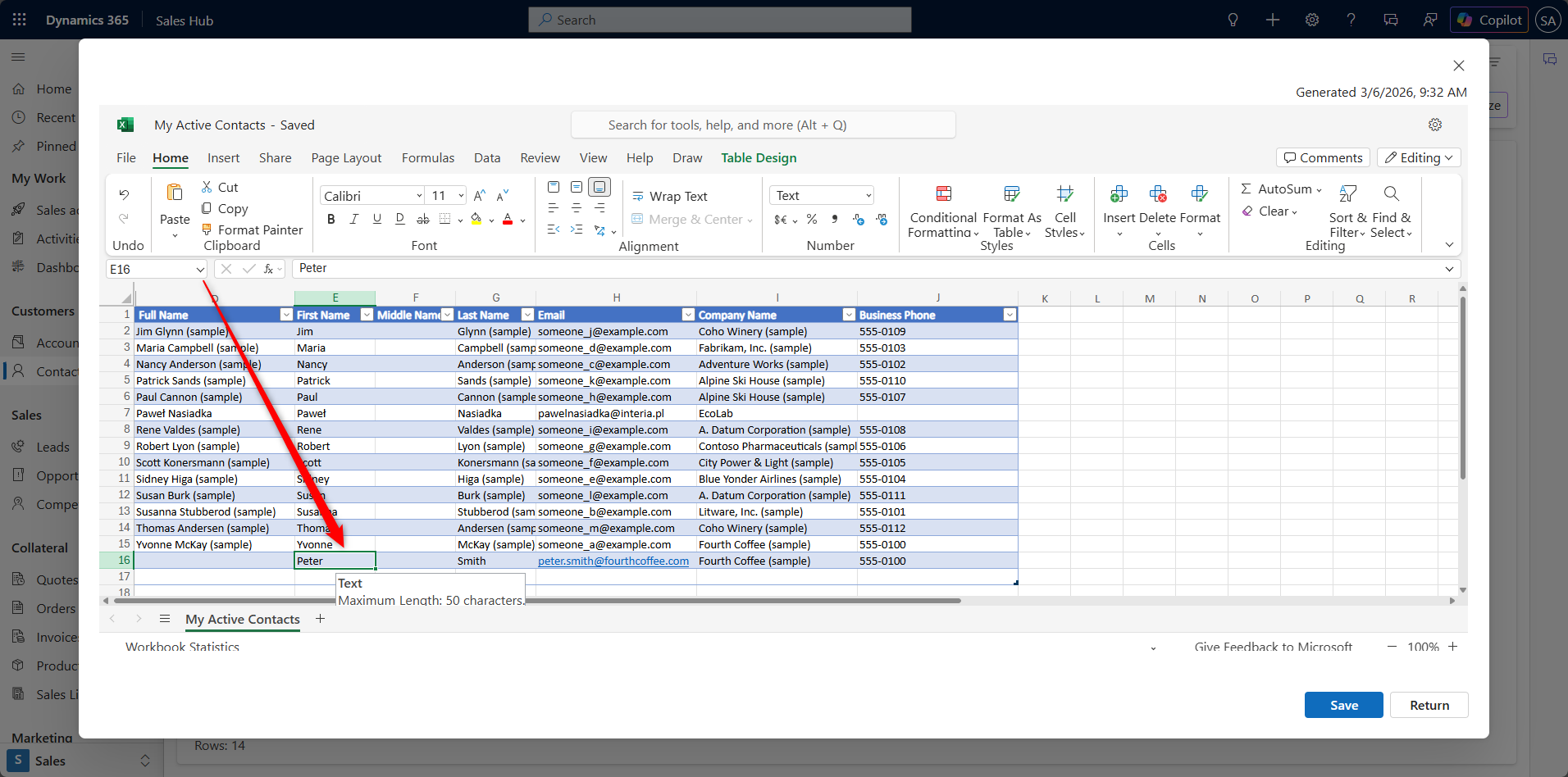
In addition, you can create and edit records in an Excel-like interface. Yes, this means you can also copy and paste data.
What is particularly useful is that when working with lookup fields, you do not need to know the technical ID (GUID) of a record.
You simply enter the company name, and Dynamics 365 maps it to the correct record automatically.
Automating CRM updates with Business Rules and Power Automate
When you create records like contacts, accounts, and opportunities, the process starts. Over time, you gather more information and update fields, notes, and statuses.
There are also cases where some fields should change automatically based on others.
For example:
If you update timeframe, estimated budget, contact person, and account – the opportunity should no longer be in the discovery phase. It should move to offering.
Of course, you can do it manually. But why should you?
In Dynamics 365, you can:
- build Business Rules for simple logic
- use Power Automate for more advanced automation
As long as automations stay within the CRM app and data context, users do not need additional licenses.
With these tools, you can:
- update fields
- create related records
send notifications - send emails
- generate documents
AI in Dynamics 365 Sales – Copilot and automation
Now, in 2026, we are in the AI era. Microsoft is one of the leaders in this space, with a strong focus on making AI useful in business processes.
In the Sales module, users can work with Copilot in Dynamics 365.
One of its features supports Outlook integration.
When an email arrives and is related to an opportunity, the system analyzes the content and checks if there is any information that could improve CRM data quality.
If there is, it suggests updates to specific fields.
Smart Paste in Dynamics 365
AI can help even more.
Sales representatives often receive:
- emails
- documents
- Excel files
And most of the time, they manually copy and paste information into CRM fields.
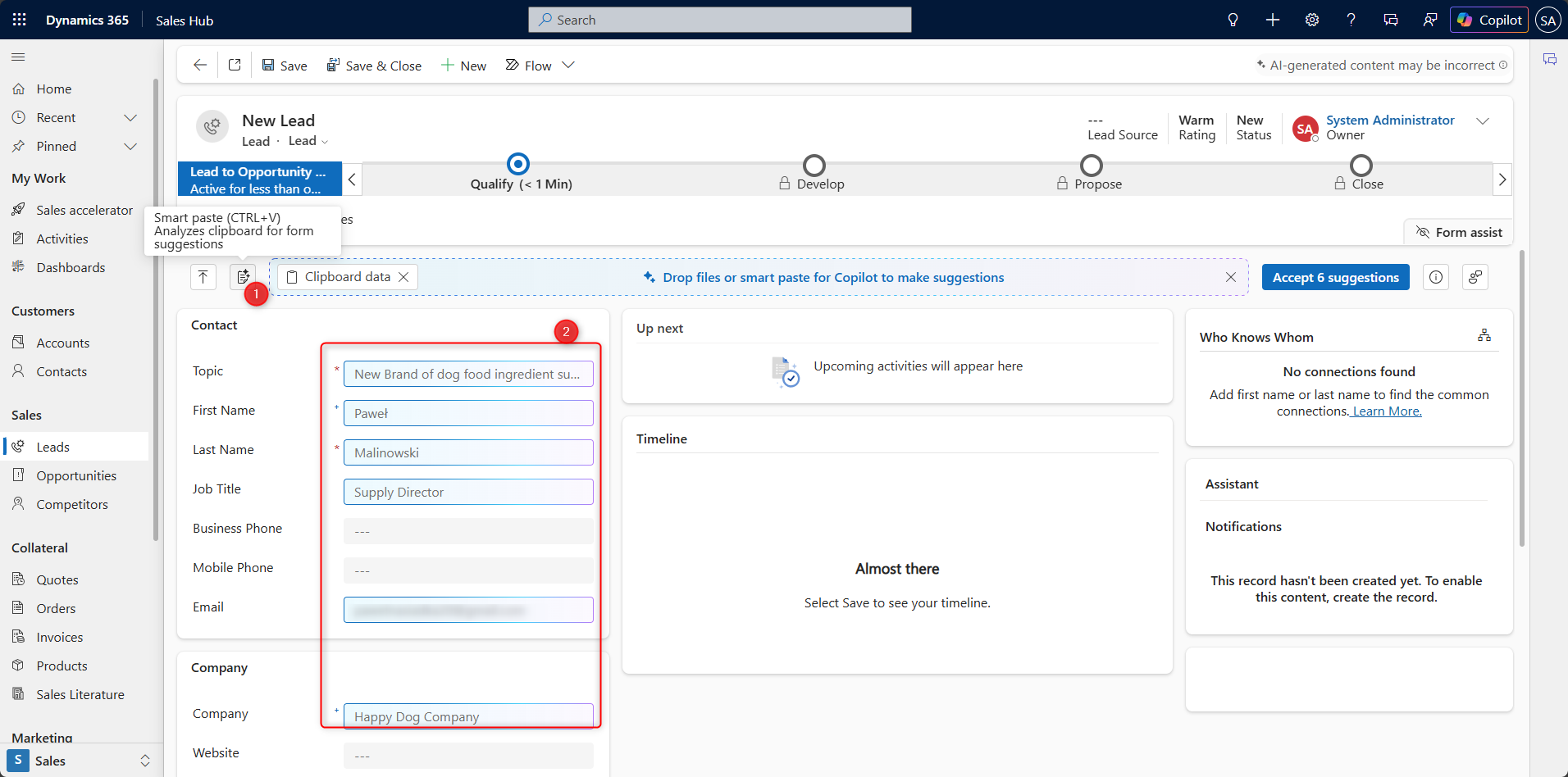
With the Smart Paste feature:
- copy the entire message
- paste it once into the CRM form
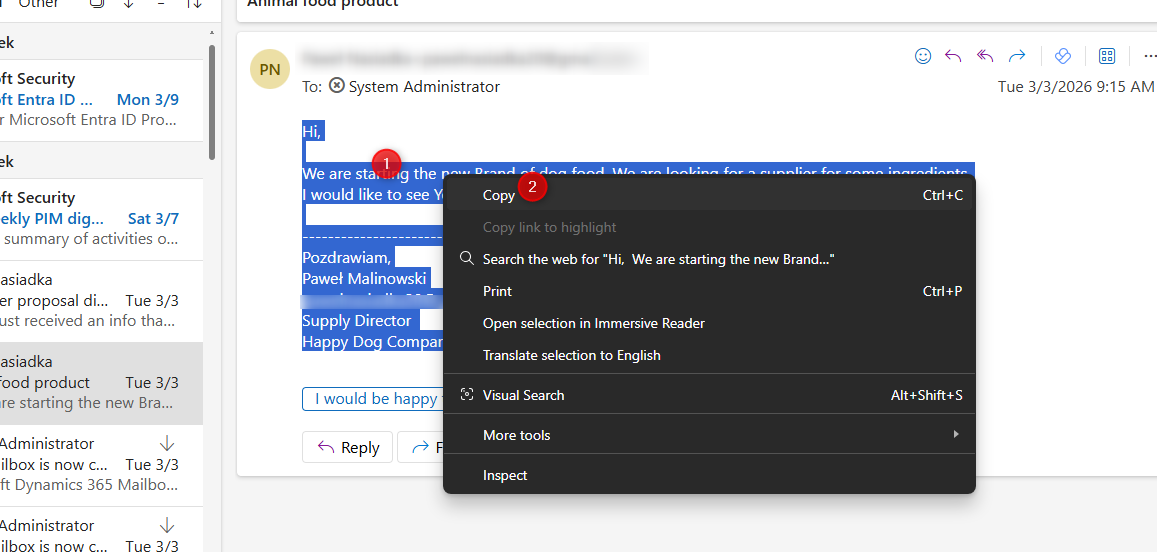
The AI extracts the information and updates the correct fields automatically.
It also works with:
- PDFs
- images
Data Enrichment Agent – automatic CRM updates
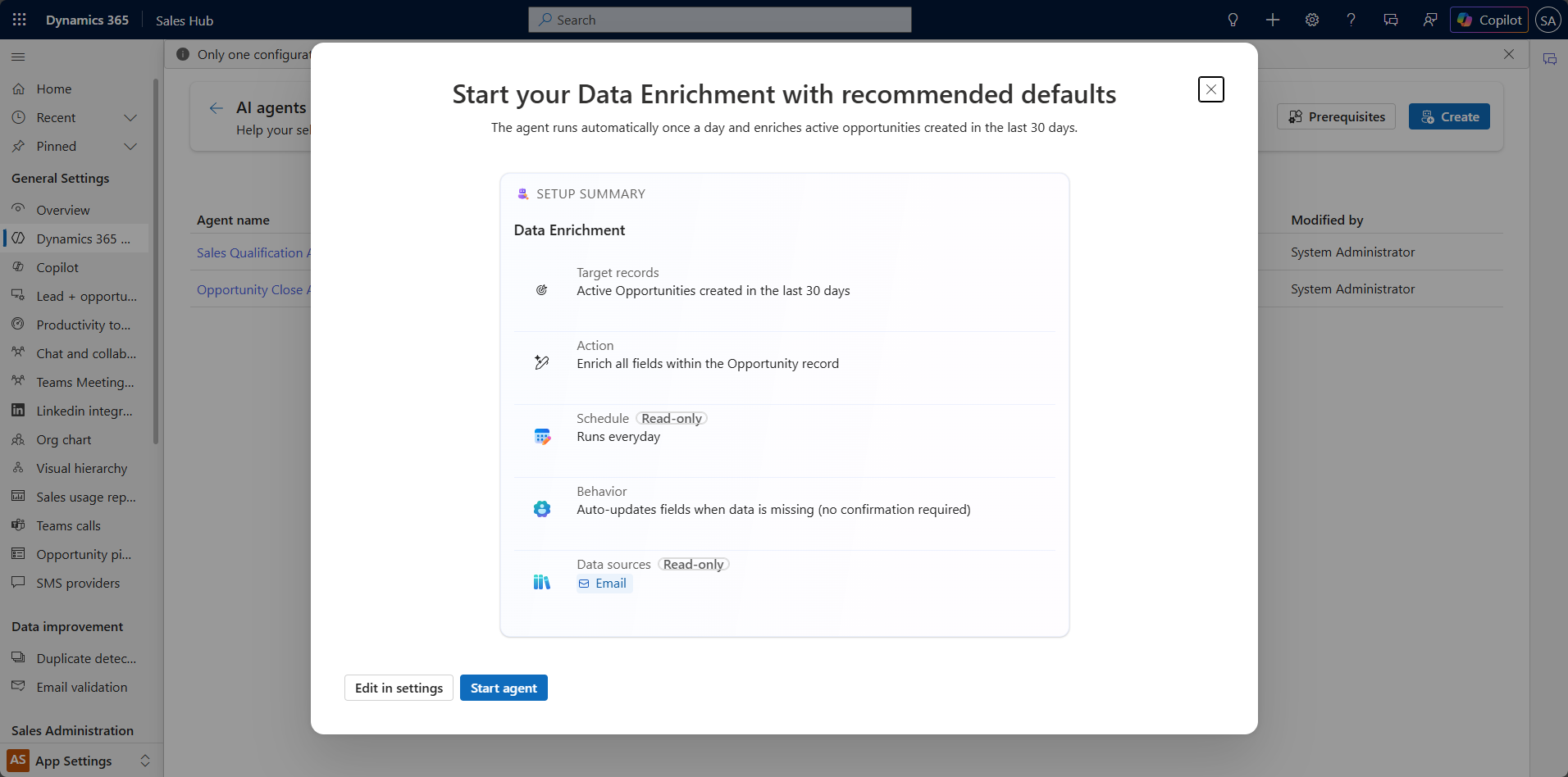
Another feature supporting data updates is the Data Enrichment Agent.
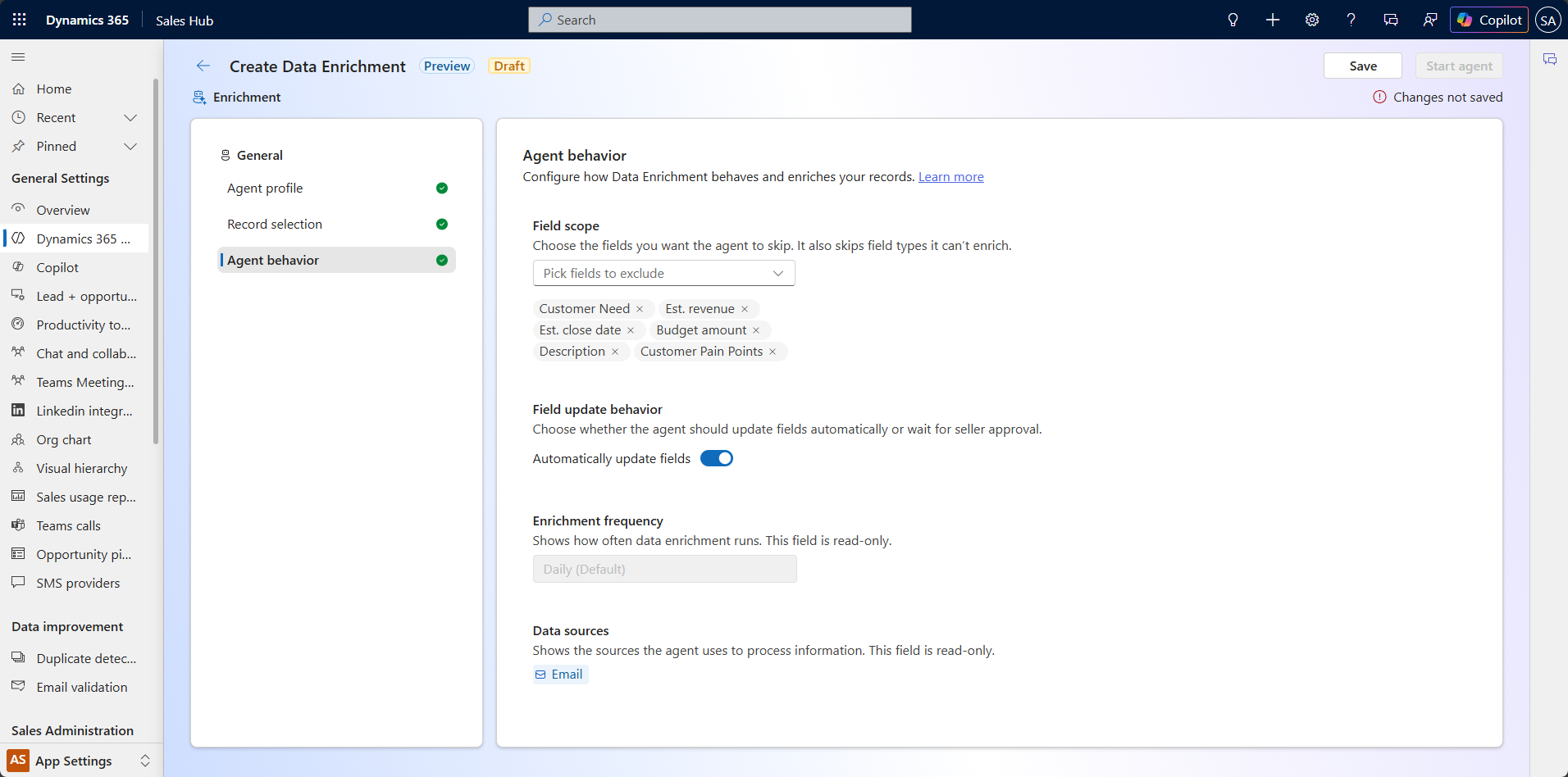
This is an AI-based agent that continuously monitors emails and Teams conversations related to an opportunity and updates the CRM record when new information appears.
You can decide whether updates:
- require user approval
- or happen automatically
What’s next?
And that is only the beginning.
With Copilot Studio and Microsoft Foundry, you can build fully voice-controlled applications that support sales representatives in their daily work.
They can:
- update notes after meetings
- schedule tasks
- invite contacts
- provide daily agendas
- guide users through meetings
Like Jarvis for Iron Man.
With features such as voice-to-text, business card scanning, Smart Paste, Data Enrichment Agent, and Copilot capabilities, most of these tasks can be automated or require only minimal user effort.
Sales teams no longer need to spend time on manual data entry and can focus on what matters most – building customer relationships and driving sales. It’s important to remember that a CRM system is only as good as the data it contains.